


To change your GitHub profile picture, go to Settings → Profile, click Edit under "Profile picture," choose Upload a photo…, position the image in the circular crop, and click Set new profile picture. The whole thing takes under a minute. The only real gotcha is the shape: GitHub crops every avatar to a circle, so a square image with the subject centered is the one that always looks right.
When you first create an account, GitHub gives you an auto-generated identicon (those colored geometric blocks). It is unique to your account but says nothing about you, and on a profile, a pull request, or a code review, a real avatar makes you recognizable. The avatar is your web identity; the name on your commits is separate, so it is worth checking that you set your commit name and email locally as well. Here is the full walkthrough.
Step 1: Open your profile settings
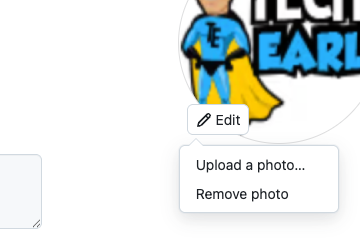
Click your avatar in the top-right corner and choose Settings, or go straight to github.com/settings/profile. The Profile picture control sits in the top-right of that page. Click Edit and choose Upload a photo…. This same Settings area is where you add an SSH key to your GitHub account when you are ready to push.
Step 2: Crop it
GitHub opens a crop window. Drag and zoom so the part of the image you want sits inside the circle, then click the green Set new profile picture. A square source image makes this trivial, because the circle is centered on it and nothing important gets cut off.

Step 3: You are done
The new avatar applies immediately. It shows up on your profile, your commits, your pull requests, and everywhere GitHub renders your account. It can take a minute for the change to ripple through GitHub's image cache, so if an old picture lingers on one page, a hard refresh sorts it out.

Picture requirements that actually matter
GitHub is forgiving about the file, but a few things save you a second attempt:
| Thing | What works |
|---|---|
| Shape | Square, subject centered (GitHub crops to a circle) |
| Format | PNG, JPG, or GIF |
| Size on screen | Use ~500 px on the long edge (GitHub recommends about 500x500 for crisp rendering) |
| File size | File must be under 1 MB and smaller than 3000x3000 px. A sensibly compressed PNG or JPG stays well under |
A common mistake is uploading a wide logo or banner: the circle crop chops the sides off and you end up with the middle slice. If your logo is not square, pad it onto a square canvas first.
Removing your picture (back to the identicon)
If you want to drop a custom picture, the same Edit menu has a Remove photo option. In most cases that returns you to the generated identicon (the colored blocks). The one exception: if the email on your account is registered with Gravatar, GitHub falls back to your Gravatar image instead of the identicon. There is no way to pick a different identicon; it is derived from your account, so it is the same one every time.
FAQ
Setting up an account from scratch? The Git for beginners guide covers the version-control side, and once you have a repo, creating your first project on GitHub is the natural next step, leading into opening your first pull request and the collaboration flow.
Sources
Authoritative references this article was fact-checked against.
- Personalizing your profile - GitHub Docsdocs.github.com


